guide
Shopify Inventory Not Updating? How to Find the Real Cause
Shopify inventory not updating? Learn how to check tracking, locations, inventory states, adjustment history, and sync overwrites before fixing the count.
Updated
At 10:11, Shopify accepts new orders for 11 black hoodies in medium. The Toronto warehouse shelf has ten. One order cannot be fulfilled, even though an earlier order appeared to reduce stock correctly.
“Shopify inventory not updating” describes the symptom, not one failure. The useful diagnosis is usually one of four things: Shopify is not tracking the variant, the variant is not stocked or active at the relevant location, the team is reading the wrong inventory state, or another system overwrote a valid quantity.
Start here: Record the affected variant, location, inventory state, current quantity, physical count, and approximate time the mismatch appeared. Then find the first event where those records diverged. Correcting the number before you identify that event can hide evidence while leaving the process that caused the mismatch in place.
| What Shopify shows | Immediate meaning | Question to answer next |
|---|---|---|
| Inventory not tracked | Shopify is not maintaining a quantity for that variant | Was tracking intentionally disabled, or is an app meant to manage it? |
| Inventory is not stocked at this location | The variant is not assigned or active for inventory at that location | Which location should stock and fulfill the variant? |
| Inventory not syncing | A connected system is not sending, receiving, or preserving the expected quantity | Which system wrote the last valid event and the first invalid one? |
| A number that looks wrong | You may be viewing the wrong state, location, or a later overwrite | What changed immediately before the mismatch? |
In a rush? Here’s the short answer
- Check whether Shopify tracks the affected variant.
- Select the exact location that should fulfill the order.
- Compare Available, Committed, Unavailable, On hand, and Incoming instead of comparing one total with the shelf.
- Review the variant’s adjustment history around the time the count diverged.
- Identify every app, ERP, WMS, 3PL, POS workflow, import, and staff process that can write inventory.
- Find the first bad event before reconciling the quantity, unless an active selling incident requires immediate containment.
The central idea is simple: a current quantity is a state. Diagnosing why that quantity is wrong requires the event chain.
Why does Shopify say “Inventory not tracked”?
Inventory not tracked means quantity tracking is off for that product variant. Shopify cannot determine the variant’s inventory states or maintain a defensible stock history until tracking is active. A variant whose quantity is not tracked also does not appear on the Inventory page.
This can be intentional for a service, digital product, made-to-order item, or product whose supply is not finite. Do not infer from the label alone that an app manages the variant: app-managed inventory is a separate configuration. When quantities are tracked by an inventory app, Shopify allocates them to that app’s location.
For a physical item with limited stock, check the variant’s Inventory section and confirm that tracking is active. Then confirm which locations stock it and whether Continue selling when out of stock matches your policy. Turning tracking on does not prove the starting quantity is correct; count the stock and enter a location-specific opening quantity you can defend.
Shopify’s current setup instructions explain both how to activate inventory tracking and how app-managed inventory affects location assignment.
What does “Inventory is not stocked at this location” mean?
The message means the variant is not currently assigned or active for inventory at the location you are trying to use. Stock at another warehouse, store, pickup point, or app location does not make this location able to sell or fulfill the variant.
First, verify that you selected the intended location. Then check whether the variant is stocked and active there. Shopify allows quantities to exist at locations that do not fulfill the variant; in that case, On hand can still be visible while Available is blank or shown as a dash. Those units are recorded at the location but cannot be used for new orders from it.
That distinction explains why a store can show positive total inventory while the online store says sold out, or why a pickup location cannot fulfill an item that exists elsewhere. If the symptom involves stores, warehouses, pickup, or a 3PL, use the Shopify multi-location inventory guide to check product activation, fulfillment eligibility, pickup settings, transfers, and routing one location at a time.
Shopify’s multi-location inventory documentation confirms that quantities can be tracked at a location regardless of fulfillment activity, but a product is sellable and fulfillable only where it is active.
Why is Shopify inventory not syncing?
Inventory not syncing means two systems no longer agree on the quantity or are not preserving each other’s updates. The break can happen when Shopify sends an event, when another system receives it, when that system calculates a new quantity, or when it writes a value back.
The systems involved might include an ERP, WMS, 3PL, marketplace connector, bundle app, returns app, preorder app, dropshipping supplier, POS workflow, or scheduled CSV process. Do not begin by asking which apps are installed. Ask which systems can write inventory, which location each one writes to, and whether they send absolute quantities or incremental changes.
For example, Shopify can correctly reduce Available after an order at 09:14. A warehouse sync based on an 08:55 stocktake can then publish the old absolute quantity at 09:21. From the storefront, it looks as though the order never changed inventory. In fact, the order update was valid and a later write reversed its effect.
When a corrected count changes back, capture the time of the correction and the time of the next change. Those two timestamps narrow the search to the jobs, webhooks, imports, and human actions that ran in between.
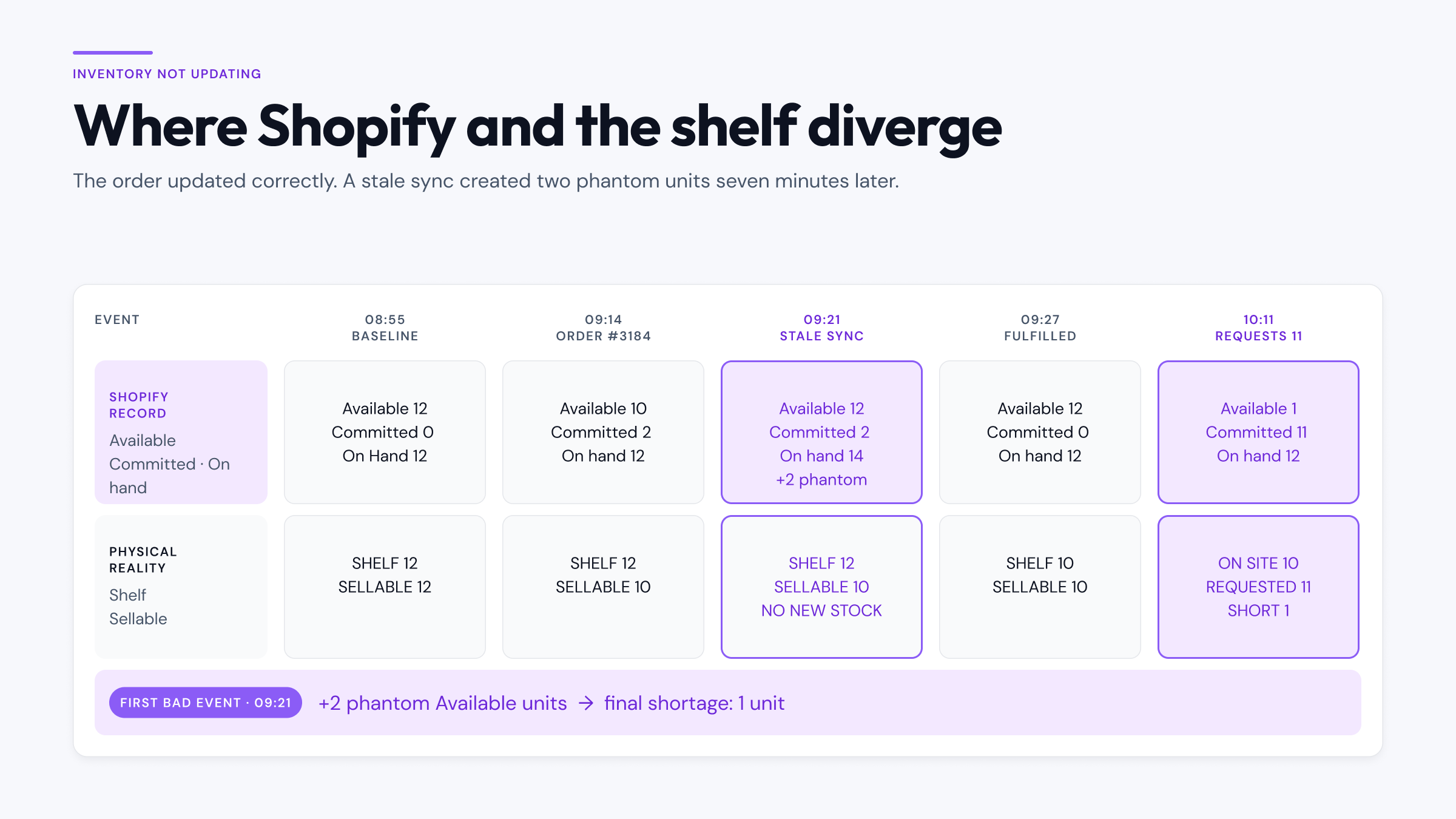
Shopify inventory can update correctly and still look wrong
Shopify does not keep one undifferentiated “in stock” number. For each tracked variant and location, it separates inventory into states:
| Inventory state | What it means operationally |
|---|---|
| Available | Units Shopify considers sellable at that location |
| Committed | Units attached to placed but unfulfilled orders |
| Unavailable | On-hand units held for draft-order reservations, apps, damage, quality control, safety stock, or other reasons |
| On hand | The sum of Available, Committed, and Unavailable units at the location |
| Incoming | Units expected from transfers, purchase orders, or apps but not yet received |
Shopify’s inventory states guide defines these states and notes that Incoming inventory is not sellable until it is received and moved to an available state. It also distinguishes a draft-order reservation, which sits in Unavailable, from a placed order, whose units become Committed.
Suppose a warehouse begins with 12 Available hoodies and no other state:
| State | Before an order | Order for 3 | After the order |
|---|---|---|---|
| Available | 12 | -3 | 9 |
| Committed | 0 | +3 | 3 |
| On hand | 12 | No physical movement yet | 12 |
The order changed inventory even though On hand stayed at 12. The warehouse has not picked the three units yet, but they are no longer available to another buyer. If someone checks only On hand, the update appears missing. If someone checks only Available, the units appear to have vanished before fulfillment. Both views are incomplete rather than contradictory.
Shopify uses the same Available-to-Committed movement in its Inventory adjustment changes report examples.
Find the first bad event, not merely the latest wrong number
Consider the hoodie incident in full:
- SKU: HD-BLK-M
- Location: Toronto Warehouse
- Starting physical count: 12
- Online fulfillment: Toronto Warehouse
| Time | Event | Shopify record | Physical or operational reality |
|---|---|---|---|
| 08:55 | Warehouse counts the bin | 12 Available, 0 Committed, 12 On hand | 12 units on the shelf |
| 09:14 | Order #3184 sells 2 | 10 Available, 2 Committed, 12 On hand | 12 on the shelf; 2 await picking |
| 09:21 | Warehouse sync publishes the 08:55 count | Available is set to 12; with 2 still Committed, On hand becomes 14 | Only 10 remain sellable after Order #3184 |
| 09:27 | Order #3184 is picked and fulfilled | 12 Available, 0 Committed, 12 On hand | 10 units remain on the shelf |
| 10:11 | New orders request 11 units | 1 Available, 11 Committed, 12 On hand | Only 10 units exist; the warehouse is short 1 |
The first bad event is the 09:21 sync, not the 10:11 order. Shopify enforced the quantity it had. The sync reintroduced two units that had already been sold.
That difference changes the fix. Recounting and setting Available to 10 contains the immediate mismatch, but it does not explain why the sync published stale stock. Unless the integration’s source data, timing, or write method changes, the next run can recreate the problem.
This is also how an inventory mismatch becomes an oversell. For a broader control plan covering tracking, selling below zero, checkout behavior, draft reservations, locations, and inventory writers, read how to prevent overselling on Shopify.
How to investigate Shopify inventory that is not updating
Start with one affected variant and one location. A catalog-wide export can help later, but it is a poor place to begin when you do not yet know which field or event failed.
1. Capture the mismatch before changing it
Record:
- product, variant, and SKU;
- exact Shopify location;
- Available, Committed, Unavailable, On hand, and Incoming;
- physical count and when it was taken;
- affected order, transfer, return, or fulfillment;
- time the count was last known to be correct;
- time the mismatch was first observed.
If sales are still creating customer harm, contain the incident. That can mean pausing the affected selling path or inventory-writing process while you investigate. Preserve the current quantities and relevant history first when it is safe to do so. Urgent containment and evidence capture can happen together; neither requires blindly reconciling the entire catalog.
2. Confirm tracking and out-of-stock behavior
Check the affected variant, not only the parent product.
- Is quantity tracking active?
- Is Continue selling when out of stock enabled?
- Is an app managing the inventory?
- Does the displayed location match the location the app manages?
If tracking is off, Shopify is not trying to stop sales at a maintained quantity. If continuing to sell is enabled, a negative Available quantity can reflect the chosen policy rather than a synchronization failure.
3. Confirm the location and product assignment
Check the location that actually fulfills the sales channel or order. Separate the warehouse, retail store, pickup point, 3PL, dropshipping app, and any non-fulfilling locations.
Positive total stock is not proof that the order’s location has Available stock. Look for a location where the variant is inactive, inventory is assigned elsewhere, or On hand exists without Available. Then inspect any transfer that is Incoming or was received at a different destination.
4. Compare inventory states
Use the state table to test a precise question:
- Did Available fall when the order was placed?
- Did Committed rise?
- Is stock in Unavailable because of a draft reservation, app hold, damage, quality control, or safety stock?
- Is stock Incoming but not yet received?
- Does On hand reconcile with Available + Committed + Unavailable?
Do not compare a shelf count taken after picking with a Shopify state captured before picking and call the difference drift. Align the location and timestamp before you compare.
5. Review adjustment history around the divergence
Shopify automatically records inventory changes for tracked products and variants. The adjustment history can show the date, activity, creator when recorded, state changes, and resulting quantities. The product or variant view covers the last 180 days; for older or broader analysis, Shopify directs merchants to the Inventory adjustment changes report.
Start at the last quantity you can defend and move forward. Look for:
- order, refund, and fulfillment events;
- manual Set to or Adjust by changes;
- app-created adjustments;
- reservations and releases;
- transfer and receiving events;
- inventory corrections and counts;
- location changes;
- bulk edits or imports near the same timestamp.
Shopify’s inventory adjustment history documentation explains the available fields and the 180-day product or variant window. For a deeper comparison of native history, reports, and activity logs, use the Shopify inventory audit and adjustment history guide.
Current admin adjustments provide more context than older Shopify guidance may suggest. Shopify’s May 2026 adjustment workflow records source, destination, actor, and time for admin adjustments using Set to or Adjust by. The bulk editor remains an exception: it sets absolute quantities without an origin-and-destination movement trail.
6. Identify every inventory writer
Build a short list of systems and workflows that can change this SKU:
- Shopify admin and POS;
- ERP, WMS, or 3PL integrations;
- marketplace and dropshipping connectors;
- bundle, preorder, subscription, and returns apps;
- transfers and purchase-order receiving;
- CSV imports and bulk edits;
- scheduled jobs or custom integrations.
For each writer, record the locations and states it can change, its source data, its schedule, and whether it sends an absolute quantity or a delta. Two systems can each work as designed and still create drift if both believe they own the final quantity.
7. Reconcile only after you understand recurrence
A clear one-off discrepancy can be reconciled once you have captured its evidence. A recurring mismatch needs one more question: what will write next?
If the same SKU changes back, many SKUs change at the same timestamp, or the mismatch began after an integration change, stop the recurring writer or correct its source before treating the Shopify count as durable. Otherwise, the reconciliation is only a temporary state between two bad events.
Separate what is known, likely, and unknown
Inventory investigations become less useful when a plausible explanation is presented as proof.
Known
Known facts come from a current record or direct observation:
- Shopify’s quantities for a named variant, state, and location at a given time;
- a timestamped physical count;
- an order, refund, transfer, fulfillment, or adjustment in the visible history;
- the creator Shopify recorded for an event;
- tracking, out-of-stock, product activation, and location settings.
Likely
A likely cause fits the sequence but remains an inference. If a WMS job ran at 09:21 and Available jumped to its earlier count at the same time, that job is a strong candidate. It is not yet proof of the source data it used or the human intent behind the write.
Test the inference against the integration log, job payload, CSV, or source-system quantity when those records exist.
Unknown
Some questions cannot be answered from the available evidence:
- which person acted when Shopify recorded only an app or channel;
- why a manual adjustment was made without a useful reason;
- whether a physical movement occurred but was never recorded;
- what happened before the retained history;
- whether a storefront display issue came from inventory, publication, theme logic, caching, or channel configuration.
Leave those points unknown until another record resolves them. Blaming an app or staff member does not repair an evidence gap.
How to keep Shopify inventory sync problems from returning
Once the immediate count is defensible, reduce the chance of another unexplained write:
- Name one quantity owner for each SKU workflow. Shopify, an ERP, a WMS, a 3PL, or another system can own the final quantity; “whichever ran last” is not a policy.
- Limit inventory write access. An app that only needs to observe inventory should not be able to change it.
- Prefer recorded movements and reasons. Use an adjustment method that captures where stock came from or went, and select the reason that matches the physical event.
- Treat absolute quantities carefully. A correct stocktake becomes stale as soon as later orders, returns, or transfers are omitted.
- Document location rules. Record which locations stock each variant, which fulfill online orders, and which support pickup or POS.
- Watch a corrected SKU through the next sync cycle. The next write is the practical test of whether the root cause was removed.
- Review repeated timestamps across SKUs. A cluster of simultaneous changes often points to a shared job or import worth investigating.
The aim is not to prevent every human mistake or integration failure. It is to make each change observable enough that the team can distinguish a one-off correction from a repeatable system problem.
When an additional inventory audit layer helps
Shopify’s native adjustment history and reports are the first places to look. They can establish many recent events and, when recorded, the staff member, app, or sales channel associated with a change. They cannot prove physical shelf truth, recover context that was never recorded, or infer human intent from a quantity alone.
Retrace is designed as an inventory observability layer beside Shopify, not as a replacement inventory system. It is designed to track how observed Shopify quantities change over time and compare current state with an event-derived ledger. When attribution evidence is available, Retrace can display it. When exact attribution is unavailable, Retrace can still surface the change and preserve the distinction between a likely cause and an unknown one.
That additional timeline is most useful after you have framed the right question: which variant, which location, which state, and which first bad event?
See how Retrace approaches Shopify inventory observability, or browse all Shopify inventory guides.
The next time Shopify says a hoodie is available while the shelf says otherwise, do not begin with the final number. Begin with the first point where the two stories separated.