guide
Shopify Inventory Audit: What You Can See, and What You Still Miss
Shopify inventory audit guide: choose the right report, read adjustment history, and reconstruct a stock mismatch without mistaking attribution for cause.
Updated
At 12:10 p.m., a warehouse picker opens Shopify before starting the next batch. For one black ribbed tee, Shopify shows 30 Available, 20 Committed, 4 Unavailable, 0 Incoming, and 54 On hand.
The shelf has none.
Twenty units are already on the packing bench, four are in the quality-control cage, and a 24-unit transfer that Shopify says was received is still on the road. The warehouse physically has 24 units, all already spoken for or held. Shopify believes it has 54.
The useful question is not simply, “Who changed inventory?” It is: Which Shopify record can prove each movement, and where does the evidence stop?
Concise answer: For one recent tracked product or variant, start with its inventory adjustment history. Use the Inventory adjustment changes report to inspect unit movements across SKUs, states, locations, staff, apps, transfers, and fulfillments; use Inventory adjustments by count to study adjustment frequency; and build a custom adjustment report when you need precise filters. The store activity log can add recent admin context, but it is not an exportable inventory audit trail. (Shopify Help: Viewing inventory adjustment history)
Which Shopify inventory report should you use for an audit?
| Shopify evidence | Use it when you need to answer | Important limit |
|---|---|---|
| Product or variant adjustment history | “What changed for this one tracked SKU recently?” | Shows the last 180 days, and variant histories are viewed separately. |
| Inventory adjustment changes | “How many units moved, in which state, and through which type of event?” | Best for unit movements and patterns, not the physical reason behind every value. |
| Inventory adjustments by count | “How often did staff, locations, apps, or reason codes generate adjustments?” | Counts adjustment events, not units. One order for three units can still produce two state-adjustment records. |
| Custom inventory adjustment report | “Can I isolate a SKU, location, state, transfer, reason, or reference document?” | Requires a custom exploration and depends on the fields recorded by the originating workflow. |
| Store activity log | “Was there recent admin, user, app, or channel activity around this time?” | View-only, not exportable, limited to 250 results, and individual events cannot be expanded. |
The choice matters because reports that happen to contain inventory numbers are not automatically audit reports. Month-end inventory snapshots, inventory value, sell-through, quantity sold, and days-of-inventory reports answer planning or performance questions. They can show what inventory looked like at a boundary or how quickly it sold, but they do not reconstruct who or what changed a specific count.
Shopify’s Inventory adjustment changes report is the better default for unit-level analysis. It includes manual adjustments, inventory-app changes, transfers, and order fulfillments. Shopify’s own example shows an order for three units as two state changes: Available decreases by three and Committed increases by three.
The Inventory adjustments by count report answers a different question. It counts how many adjustments occurred across dimensions such as staff, location, app, and reason, regardless of the number of units moved. Use it to find repeated behavior, not to calculate the shortage in one incident.
For a narrow investigation, a custom inventory adjustment report can group one SKU by location, inventory state, and change reason. Shopify also documents filters for transfer records and a referenceDocumentURI, which can connect an adjustment to an external purchase order or other record when an app supplies that reference.
What Shopify inventory adjustment history can prove
Shopify records adjustment history for inventory-tracked products. On a product or variant, the history shows the date, activity, creator, and quantity effects for the relevant inventory states. The creator can be a staff member, app, or sales channel. Automatic activities can include orders, apps, system processes, received transfers, and reservations. (Shopify Help: Viewing inventory adjustment history)
The state columns are not five versions of the same count:
| Inventory state | What it means |
|---|---|
| Available | Units Shopify considers sellable and not committed or unavailable |
| Committed | Units attached to placed but unfulfilled orders |
| Unavailable | On-hand units reserved or held by draft orders, apps, damage, quality control, safety stock, or another hold reason |
| On hand | Available + Committed + Unavailable at the location |
| Incoming | Units expected from a transfer or app but not yet received and sellable |
This is why “Shopify says 54” is incomplete. In the opening incident, 20 units are Committed and four are Unavailable. Even if Shopify’s On hand value were physically correct, only its Available portion could be sold to another customer. The inventory-states documentation makes the arithmetic explicit: On hand is the sum of Available, Committed, and Unavailable, while Incoming remains separate.
Product or variant history is often the fastest way to explain a recent single-SKU movement. It is not indefinite storage. Shopify currently limits this view to the last 180 days and directs merchants to the Inventory adjustment changes report for older or broader analysis. If a product has variants, each tracked variant’s history is viewed separately rather than as one combined product history.
What changed in Shopify’s May 2026 adjustment workflow?
On May 7, 2026, Shopify announced fuller change tracking for admin inventory adjustments. The current workflow presents two modes:
- Set to changes a quantity to a specific number. It is appropriate when you know the exact quantity, such as after a physical count.
- Adjust by adds or removes a quantity and asks you to identify its origin and destination, such as moving units from a warehouse location to Quality control.
Shopify says admin adjustments in either mode now record the source, destination, actor, and time. The practical difference is that Adjust by expresses a movement selected by the operator, while Set to makes Shopify calculate the quantity change needed to reach the entered total. In adjustment history, Set to displays the selected reason, or “Manually adjusted” when none was selected; Adjust by displays the movement between origin and destination. (Shopify Help: Adjusting inventory quantities)
That update makes the native trail more useful, but it does not turn a recorded adjustment into proof of physical reality. A Set to value can show that a staff member set Available to 30 after selecting “Count.” It cannot prove whether the count covered the shelf, packing bench, quality-control cage, receiving dock, or the correct location. Likewise, an Adjust by movement to Quality control records the state change; it does not prove that the four units were inspected or explain what defect the inspector found.
The Bulk Editor is the important exception
Shopify left the Bulk Editor workflow unchanged. It can still set Available quantities directly without requiring a source or destination. Shopify’s current help documentation says that this workflow sets absolute quantities and does not create an audit trail of inventory movements. (Shopify Help: Adjusting inventory quantities in bulk)
That distinction should change how you investigate a jump. Do not assume every current Set to adjustment hides its path; the May 2026 admin workflow improved tracking. Instead, determine which editing surface produced the value. A guided Set to, an Adjust by movement, a received transfer, an app adjustment, and a Bulk Editor write leave different evidence.
A complete Shopify inventory audit: where 30 units appeared
The incident below is a realistic worked example, not a claim about a specific merchant. It uses one tracked variant, RIB-TEE-BLK-M, at Toronto Warehouse during a product drop.
At 7:30 a.m., both Shopify and a verified physical count show 120 units on the sellable shelf. Another 24 units are in an open transfer and physically in transit. Shopify therefore starts with 120 Available, 0 Committed, 0 Unavailable, 24 Incoming, and 120 On hand.
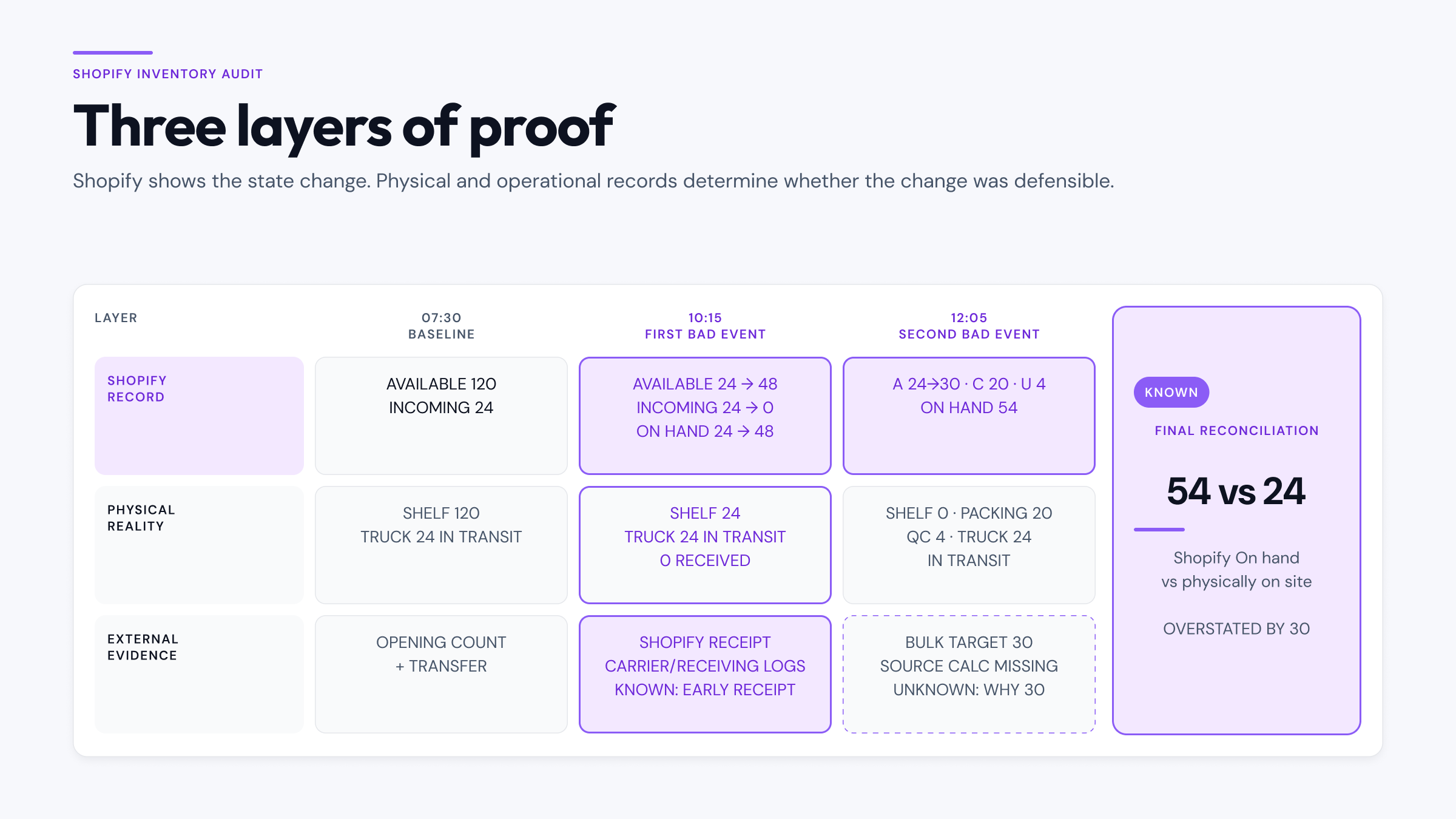
| Time | Event | Shopify-visible effect | What the operator sees |
|---|---|---|---|
| 07:30 | Opening count; transfer remains in transit | 120 Available; 24 Incoming; 120 On hand | 120 on shelf; 24 still in transit |
| 08:05 | Customers order 96 units | 24 Available; 96 Committed; 24 Incoming; 120 On hand | 120 on shelf; 24 still in transit |
| 09:45 | Warehouse dispatches the 96 units | 24 Available; 0 Committed; 24 Incoming; 24 On hand | 24 on shelf; 24 still in transit |
| 10:15 | User marks the transfer received before arrival | 48 Available; 0 Incoming; 48 On hand | 24 on shelf; 24 still in transit |
| 10:30 | Staff move 4 shelf units to Quality control | 44 Available; 4 Unavailable; 48 On hand | 20 on shelf; 4 in QC; 24 still in transit |
| 11:00 | Customers order the remaining 20 shelf units | 24 Available; 20 Committed; 4 Unavailable; 48 On hand | 20 on shelf; 4 in QC; 24 still in transit |
| 11:30 | Picker moves the 20 units to packing | Inventory states do not change | 0 on shelf; 20 in packing; 4 in QC; 24 still in transit |
| 12:05 | 3PL bulk edit sets Available to a stale 30 | 30 Available; 20 Committed; 4 Unavailable; 54 On hand | 0 on shelf; 20 in packing; 4 in QC; 24 still in transit |
The table contains two bad inventory events, and each leaves a different kind of evidence.
First, marking the transfer received moves 24 from Incoming to Available and raises On hand by 24. Shopify’s adjustment-history documentation uses the same state movement for a received incoming transfer. The movement is recorded, but Shopify cannot verify that a truck reached the dock. In this incident, the carrier scan and receiving log establish that it did not.
Second, the Bulk Editor changes Available from 24 to 30. Because Committed remains 20 and Unavailable remains four, On hand rises from 48 to 54. The six-unit increase is arithmetically visible when the before and after values are preserved, but the Bulk Editor does not require a source or destination and does not preserve the same movement record as the guided adjustment workflow.
The physically defensible final state is:
| State | Shopify final | Defensible final | Difference |
|---|---|---|---|
| Available | 30 | 0 | +30 |
| Committed | 20 | 20 | 0 |
| Unavailable | 4 | 4 | 0 |
| Incoming | 0 | 24 | -24 |
| On hand | 54 | 24 | +30 |
| Sellable shelf | — | 0 | — |
The proof is straightforward:
- Shopify On hand reconciles internally: 30 Available + 20 Committed + 4 Unavailable = 54 On hand.
- Physical inventory at the location also reconciles: 0 on the sellable shelf + 20 on the packing bench + 4 in Quality control = 24 on site.
- Without the two bad events, Shopify should show 0 Available + 20 Committed + 4 Unavailable = 24 On hand, with 24 Incoming.
- The premature receipt creates 24 phantom Available and On hand units. The Bulk Editor adds six more. 24 + 6 = the 30-unit overstatement.
This is the point of an audit trail. The final Shopify arithmetic can be perfectly valid while the operational premise behind two inputs is wrong.
Separate known, likely, and unknown evidence
A useful Shopify inventory audit does not turn every timestamp into a verdict. It labels what the records establish and what still needs another source.
Known
The opening physical count was 120. Shopify recorded 96 units moving from Available to Committed, followed by fulfillment and dispatch. It recorded the 24-unit transfer as received and the four-unit movement to Quality control. Twenty later orders remain Committed. The final Shopify state is 30 Available, 20 Committed, 4 Unavailable, 0 Incoming, and 54 On hand.
The warehouse count also establishes that the shelf is empty, 20 units are on the packing bench, four are in Quality control, and the carrier still has the 24-unit transfer. The 3PL change sheet records a Bulk Editor target of 30.
Likely
The 3PL’s target probably came from a snapshot that already included the prematurely received transfer. That fits the timing and quantities, but it remains an inference until the 3PL’s export or system log shows which snapshot it used.
Unknown
Shopify’s actor and timestamp do not establish why the transfer was marked received before arrival. The user might have selected the wrong transfer, confused “shipped” with “received,” or followed a local receiving habit. The audit also does not establish why the 3PL chose 30 without its own calculation or source file.
Those unknowns matter for process design, but they do not block the immediate arithmetic. You can contain the oversell risk and restore a defensible count without inventing intent or blaming the last person whose name appears in a log.
How to investigate Shopify inventory adjustment history
The investigation should preserve evidence, narrow the scope, and only then change the number. Urgent containment is allowed; evidence destruction is not.
1. Contain customer risk and preserve the current state
If the SKU is still selling against stock you cannot fulfill, temporarily pause sales or remove the affected location from the relevant fulfillment path. Capture the time, SKU, variant, location, order impact, and every current inventory state before making a corrective adjustment.
Containment is not root-cause correction. It prevents more customer impact while leaving a record of what the system showed.
If the mismatch has already produced accepted orders beyond physical stock, use the investigation pattern in How to prevent overselling on Shopify to separate checkout behavior from an inventory count that was already overstated.
2. Freeze one SKU, one location, and one time window
Do not begin with “inventory is wrong everywhere.” Record the exact variant, location, first affected order, last known good count, and first known bad count.
Location is part of the evidence. A total across a retail store, warehouse, and 3PL can reconcile while the location responsible for fulfillment remains wrong. If quantities or promises disagree by location, follow the location-level checks in Shopify multi-location inventory problems.
3. Count physical zones, not just the shelf
Write down the units on the sellable shelf, packing bench, receiving dock, returns area, Quality control, damaged area, and any other held zone. Compare that physical map with Available, Committed, Unavailable, Incoming, and On hand.
The opening incident would be misdiagnosed if the operator reported only “shelf zero.” The 20 packed units explain Committed, and the four QC units explain Unavailable. The unexplained part is the 30 Available and the missing Incoming state.
4. Open product or variant adjustment history
For a tracked SKU within the last 180 days, use adjustment history to find the first state movement that cannot be defended. Read the Activity, Created by, and quantity columns together.
Look for:
- guided Set to adjustments and their recorded reason;
- Adjust by movements with origin and destination;
- orders moving Available to Committed;
- transfer creation or receipt;
- reservation changes;
- app or system adjustments.
Do not stop at the last adjustment. A valid-looking correction can sit after the event that created the discrepancy.
5. Move to the right inventory report
Use Inventory adjustment changes when you need unit deltas across a longer window or more SKUs and locations. Use Inventory adjustments by count when the problem is repeated adjustment frequency. Build a custom report when you need to isolate one SKU across locations and states, one transfer type, one reason, or a reference document.
Export the relevant evidence when the report supports it, and preserve the filters and time zone used. A screenshot without the SKU, location, and timestamp can be surprisingly hard to defend later.
6. Correlate Shopify with operational records
Match the Shopify timeline against:
- order and fulfillment timelines;
- transfer records and carrier scans;
- receiving and cycle-count records;
- returns and refund records;
- app or 3PL logs;
- import files and Bulk Editor source sheets.
Shopify’s store activity log can help with recent admin context, but keep its limits in view. Shopify says it is view-only, cannot be exported, shows at most 250 results, and does not let you expand individual events. It may also show “Shopify” for background jobs, app or channel syncs, or actions initiated through bulk workflows. (Shopify Help: Activity logs)
7. Write the evidence conclusion before reconciling
State the incident in three parts:
- Known: the state movements and physical records you can prove.
- Likely: the mechanism best supported by the sequence.
- Unknown: the intent or external calculation the records do not contain.
Then identify the first bad event, not merely the most recent write. In the example, correcting 30 Available to zero handles the immediate overstatement. The first bad event remains the early transfer receipt, and the later Bulk Editor write is a second control failure.
8. Reconcile and watch the next write
After preserving evidence and containing active risk, correct the relevant state and location. Document the adjustment reason, source, destination, and physical count. Then watch the next expected order, receipt, reservation, or app sync.
If the count changes back, the problem is still active. Follow the event chain in Shopify inventory not updating to identify the system that is sending, receiving, or preserving the wrong quantity.
When Shopify’s native history is enough—and when it is not
Native Shopify evidence is often enough for a recent, narrow incident. One product or variant history can show a guided count adjustment, an order commitment, a transfer receipt, or an app-created change. An adjustment report can extend the time window and reveal repeated staff, app, location, or reason patterns.
The evidence becomes incomplete when the operational “why” lives outside Shopify: a physical count omitted the packing bench, a carrier had not delivered a received transfer, an app calculated a quantity from another system, or a Bulk Editor value came from a stale sheet. The store activity log can add context, but its result limit and lack of export make it a supporting surface rather than a durable inventory ledger.
Recorded attribution is also not the same as root cause. A staff name proves that Shopify associated the adjustment with that account. An app name proves that the change arrived through that integration. Neither proves the physical count method, the user’s intent, or the business rule behind an external system’s number.
When an additional audit layer helps
An additional audit layer becomes useful when the same SKU changes again after correction, the investigation spans several Shopify and external records, or the team needs a longer, normalized event chain. The job is to make each stock change easier to see and compare, not to replace Shopify, a warehouse system, or a physical count.
Retrace is designed as that inventory-observability layer. It shows how Shopify stock changes over time and compares observed Shopify state with an event-derived ledger. When attribution evidence is available, Retrace can preserve and display it. When exact actor attribution is unavailable, it can still surface the change without pretending to know the human intent behind it.
Browse all Shopify inventory guides for related investigations, or compare Retrace plans when your team needs a more durable view of the event chain.
The goal is not to collect more logs. It is to know which number you can defend, which event changed it, and which part of the story remains unproven.