guide
How to Prevent Overselling on Shopify During Sales, Launches, and Multi-Channel Peaks
Learn what Shopify prevents at checkout, where overselling still happens, and how to prepare inventory for launches, sales, and multi-channel demand.
Updated
At 9:30 a.m., your long-anticipated product drop goes live. Orders arrive immediately, and the most popular SKU sells out by 9:42. The dashboard looks clean: zero available, orders flowing, campaign working.
Then the warehouse double-checks the shelf.
You allocated 100 units to the drop, but Shopify has accepted sales for 101 across the online store and POS. One online order now needs a cancellation or substitution, and an uncomfortable email.
That is overselling: accepting more orders for a SKU at a location than you can actually fulfill. High traffic can expose the problem, but it usually isn’t the original cause. The first bad event often happened earlier: a stale inventory write, an unreserved draft order, an incorrect location, or a setting that deliberately allowed sales below zero.
Preventing overselling therefore takes more than watching the sold-out badge. You need to know what Shopify protects, where those protections stop, and which people, apps, and systems can change the inventory count.
In a rush? Here’s the short answer
To prevent overselling on Shopify:
- Track inventory for every variant with finite stock.
- Turn off Continue selling when out of stock for products that must stop at zero.
- Reserve inventory for draft orders that represent real commitments.
- Set per-variant cart limits for high-demand products.
- Confirm which locations can fulfill online orders.
- Map every app, channel, warehouse system, and person that can modify inventory.
- Reconcile constrained SKUs before the sale or drop, then limit manual changes while the event is live.
These controls work only if Shopify starts with the right count and receives inventory changes promptly. A checkout safeguard cannot protect stock if an app has already overstated the count.
What Shopify prevents—and what it doesn’t: overselling vs. checkout contention
Shopify already has built-in safeguards against overselling. They work only when the underlying inventory state and settings are accurate.
According to Shopify’s checkout documentation, inventory is checked as a customer moves through checkout. Adding an item to a cart does not reserve it. Shopify holds inventory only after the customer submits payment information, and releases the hold if the payment fails.
That creates checkout contention during a fast sale: several people can place the last unit in their carts, but they do not all own it. If inventory tracking is on and selling past zero is disabled, a later buyer should see an inventory error after the unit becomes unavailable rather than create another fulfillable order.
This distinction matters because checkout contention is not the same as overselling.
- Contention means multiple buyers are competing for the same remaining unit. Some may lose it before payment.
- Overselling means the store accepts more orders than the operation can fulfill.
Traffic can make both visible at once, but simultaneous carts aren’t enough to explain an accepted order below zero. When that happens, investigate the count, settings, locations, point-of-sale behavior, draft reservations, and inventory-writing apps.
Built-in safeguards have boundaries
Shopify’s main safeguards cover different parts of a SKU and order lifecycle:
| Safeguard | What it helps prevent | What it cannot fix |
|---|---|---|
| Inventory tracking | Treats a variant as finite stock | A wrong starting count or stale app write |
| Continue selling disabled | Stops online sales after tracked inventory reaches zero | Point-of-sale exceptions, untracked inventory, or stock reported to the wrong location |
| Checkout inventory checks | Stops later buyers when inventory is no longer available | Inventory that Shopify incorrectly believes is available |
| Cart limits | Caps how many units one buyer can add per variant | Demand across many buyers, draft orders, POS, or permitted overselling |
| Draft-order reservations | Removes reserved draft-order units from Available | Drafts that were never reserved or reservations that expired |
Shopify can enforce the inventory state it has. It cannot account for a physical sale or third-party commitment that hasn’t reached Shopify, or correct a stale app write on its own.
What actually causes overselling on Shopify
Most overselling incidents fit one of four mechanisms. More than one can be present in the same event.
1. Shopify starts from the wrong available count
Suppose you allocated 100 units to a drop, but Shopify’s count has been overstated by one. The platform can process 101 valid-looking sales without any checkout race at all.
Wrong counts commonly begin with:
- a manual adjustment at the wrong location;
- a return added back before it’s sellable;
- damaged or quarantined stock left in Available;
- a purchase-order receipt recorded before units arrive;
- a stale warehouse or app sync overwriting a newer quantity;
- two systems treating themselves as the inventory source of truth.
The sale doesn’t create the discrepancy. It turns an existing discrepancy into customer impact.
On a personal note:
Before building Retrace, I spent years leading product development at an inventory management company. Most of our customers sold through Shopify, while roughly a third used other ecommerce platforms. I saw the same workflow problems across them.
Customers repeatedly described the same frustrations: a staff member mistyped an adjustment, restocked a return too soon, or marked a purchase order as received before it physically arrived. The lesson wasn’t that people were careless. Inventory workflows need to expect ordinary human mistakes and make them visible before they become customer-facing problems.
2. The store is configured to permit sales past zero
Shopify’s Continue selling when out of stock setting does exactly what its name says. This setting is useful for preorders and made-to-order products, but dangerous when a physical item has a hard limit.
Untracked variants create a similar exposure because Shopify has no finite quantity to enforce. Shopify’s inventory reports documentation notes that negative inventory can result when tracked products are oversold, while untracked inventory is treated differently.
There is also a channel-specific exception: the online setting doesn’t stop Shopify POS from selling below zero. Shopify’s out-of-stock guidance says POS staff receive a warning and can still complete the sale. That may be reasonable at a counter where the item is physically present, but it changes how much protection the shared count provides.
3. A real commitment never reduced Available
A salesperson creates a draft order and tells the buyer the stock is theirs. Unless that inventory is reserved, those units remain available to other customers.
Shopify lets merchants reserve inventory on draft orders. Reserved units move out of Available for the selected location, and the reservation can have an expiry. If the draft is only a quote, leaving it unreserved may be correct. If it represents a firm commitment, the operational promise and the Shopify state need to agree.
The same principle applies to bundles, subscriptions, wholesale allocations, and safety stock. If the commitment exists only in a spreadsheet or another app, Shopify cannot account for it unless that system writes the corresponding stock change back.
4. Channels and locations disagree about ownership
Multi-location inventory is not one pooled number. Shopify tracks quantities independently by location, and the location must be active for the product. Its multi-location inventory guidance also explains that retail-only stock can count toward total inventory without being available for online orders.
That creates several possible inventory problems:
- stock exists, but at a location that cannot fulfill the online order;
- two locations both believe the other will fulfill;
- a marketplace sale reaches Shopify after another order has already consumed the unit;
- an app writes a combined quantity into one location;
- POS and online orders draw from the same physical shelf with different operating rules;
- an order-routing change sends demand to a location with an inaccurate count.
If a non-Shopify channel does not report a sale promptly, Shopify cannot reserve that unit on the channel’s behalf. The prevention mechanism is timely synchronization, clear location ownership, or a deliberate buffer.
A realistic teardown: the oversell started before the launch
Consider a fictional merchant selling a limited-edition jacket from one retail-and-fulfillment location. The merchant allocated 100 units to the drop. The SKU is available both online and through Shopify POS, and a warehouse connector also updates Shopify inventory.
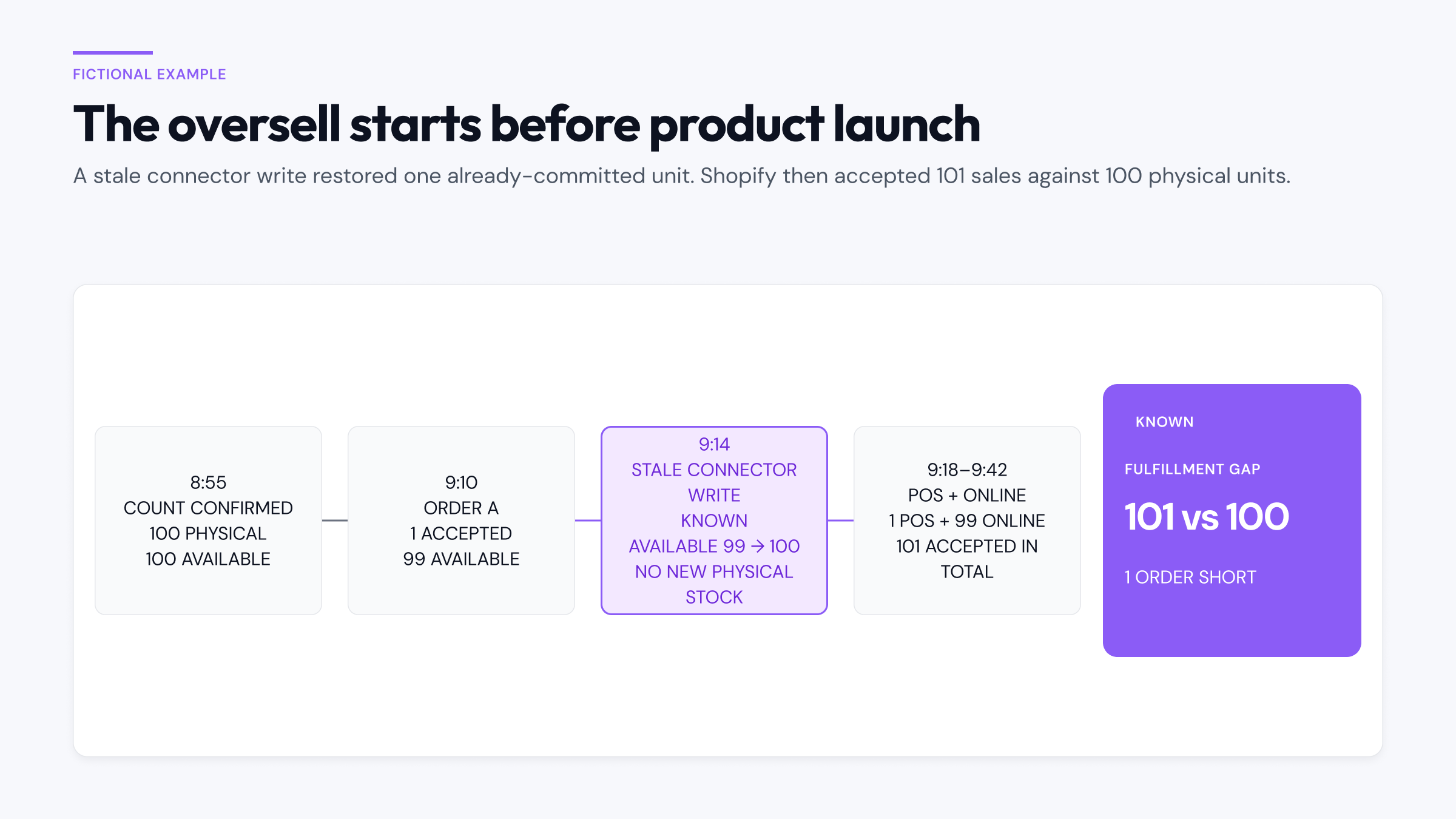
| Time | Event | What Shopify shows | Operational reality |
|---|---|---|---|
| 8:55 | Pre-launch count is confirmed | 100 Available, 0 Committed | 100 physical units; all 100 can be promised |
| 9:10 | Early-access online order A is accepted for 1 | 99 Available, 1 Committed | 100 physical units; 99 remain uncommitted |
| 9:14 | Connector sets Available back to 100 | 100 Available, 1 Committed | Only 99 units remain uncommitted |
| 9:18 | POS completes a sale for 1 | 99 Available, 1 Committed | 99 physical units; 98 remain uncommitted |
| 9:30 | The public product drop opens | 99 Available, 1 Committed | Shopify is already overstating sellable stock by 1 |
| 9:42 | Online orders are accepted for 99 more | 0 Available, 100 Committed | Shopify has accepted 101 unit sales across online and POS, but the drop contained 100 |
| 9:46 | Picking begins | 0 Available, 100 Committed | Only 99 units remain for 100 online commitments; one cannot be fulfilled |
The first bad event was the 9:14 connector write. It restored one unit that had already been committed. The POS sale and launch traffic consumed the overstated count, but neither created it.
This is why a useful incident timeline needs more than order numbers. For each change, record:
- the exact time;
- the SKU and location;
- the quantity before and after;
- the inventory state affected, such as Available or Committed;
- the actor or system that made the change, when attribution exists;
- the physical or operational fact the change was meant to represent.
Shopify’s inventory adjustment history can show recent adjustments, creators, and reservation activity. Orders, app logs, warehouse records, and physical counts may be needed to complete the timeline. The goal is to find the earliest unsupported change, not simply the last order that exposed it.
A pre-sale runbook for constrained or limited inventory
Run this process for limited products, launches, flash sales, and seasonal peaks. Start with the SKUs where a small discrepancy would cause a cancellation.
72 hours before: make the inventory model explicit
For every constrained variant:
- Confirm that inventory tracking is enabled.
- Confirm that Continue selling when out of stock is off unless the product is intentionally available for preorder.
- List every active inventory location and whether it can fulfill online orders.
- Identify the physical stock represented by each location.
- List every inventory writer: Shopify Admin, POS, warehouse systems, returns tools, bundle apps, subscriptions, marketplaces, and custom integrations.
- Name one system as authoritative for each kind of change.
If two systems can write the same quantity, document how conflicts are resolved. “Last write wins” is not a control when one of the writes can be stale.
For external channels, measure the real synchronization delay during normal traffic. If a marketplace sale can take several minutes to reach Shopify, decide whether to remove that SKU from the channel, reduce the quantity exposed there, or hold a buffer. The right buffer depends on demand and sync latency; there is no universal percentage.
24 hours before: reconcile the risky SKUs
Count the physical units and compare them with Shopify by variant and location. Do not reconcile against a combined store total if fulfillment depends on location.
When a number differs, avoid immediately forcing Shopify to match the shelf. First explain the gap:
- Are units committed to open orders?
- Are some reserved for draft orders?
- Are returns still being inspected?
- Is stock unavailable, damaged, or in transfer?
- Did an app make a recent adjustment?
- Is the physical count attached to the correct location?
Only then make a correction, and leave a reason that another person on the team can understand.
Review open draft orders separately. Reserve inventory for firm commitments, set a deliberate expiry, and release abandoned reservations. Do not reserve casual or unconfirmed sales quotes.
Before launch: reduce avoidable demand spikes
Shopify can limit the maximum quantity a customer adds for a variant to the quantity available. This add-to-cart limit reduces oversized carts, but it has important exceptions, including POS, draft orders, B2B orders, untracked products, and products allowed to sell past zero.
For a limited launch, set a lower per-customer cap when appropriate. Remember, however, that this is a fairness and concentration control, not a substitute for accurate inventory.
Also test the customer experience:
- Try to add more than the limit.
- Take the final unit through checkout.
- Confirm that a second checkout receives the expected inventory error.
- Verify that failed payments release their holds.
- Confirm that the sold-out state appears on every relevant storefront and sales channel.
If bundles share components, test the component deduction rather than only the bundle listing.
During the peak: protect the count from unnecessary writes
Watch the small set of high-risk SKUs instead of the entire catalog. For those products:
- compare order volume with the expected inventory decline;
- watch for quantities that increase without a receipt, return, or cancellation;
- investigate location transfers and manual adjustments immediately;
- avoid bulk imports and nonessential catalog changes;
- keep one incident owner and one shared timeline;
- pause the product or affected channel when the count can no longer be trusted.
A short sales pause is often cheaper than accepting orders against a number nobody can explain.
Do not “fix” an unexpected count repeatedly while orders are still moving. Capture the current state, identify the source of the last change, and then correct it once. Otherwise the correction itself becomes another unexplained event.
After an oversell: reconstruct one SKU before changing everything
Start with the first affected SKU and location. Record the earliest reliable physical count, then replay inventory-changing events in time order:
- orders and cancellations;
- fulfillments and returns;
- draft reservations and releases;
- POS sales;
- transfers and receipts;
- manual adjustments;
- app and warehouse writes.
Classify each conclusion as known, likely, or unknown.
- Known: the connector changed Available from 99 to 100 at 9:14.
- Likely: it used a snapshot captured before order A.
- Unknown: whether the stale snapshot came from a delayed job or a retry.
That wording is operationally useful. It tells the team what the evidence proves, what remains an inference, and what needs to change before the next peak.
Fix the mechanism, not just the final number. That might mean turning off permitted overselling, reserving firm drafts, changing location routing, tightening connector conflict handling, or removing a delayed channel from a limited launch.
If your inventory is already out of sync, use the Shopify inventory troubleshooting guide to find the first bad event. For a closer look at Shopify’s native evidence, see the Shopify inventory audit and adjustment history guide.
Consider Retrace
Peak traffic is easier to manage when every SKU has a history you can inspect.
Retrace records Shopify inventory changes over time, compares Shopify’s current count with a tracked ledger, and surfaces mismatches or unexpected changes. When attribution is available, Retrace shows who or what caused the change. When it is not, the change still remains visible in the timeline.
Retrace does not reserve inventory or replace a channel connector. It gives operators clearer Shopify-side evidence for investigating how a count changed and where it stopped adding up.
Browse all Shopify inventory guides, compare Retrace plans, or install Retrace from the Shopify App Store before your next sale or product drop.
Frequently asked questions
Should I add a safety-stock buffer before a Shopify launch?
A buffer can help when you have measured risks such as channel-sync delay, inspection failures, or predictable damage. It should be tied to those risks rather than copied from a generic percentage. A buffer can absorb a small variance, but it will not stop a stale app from overwriting the count.
Which Shopify inventory number should I compare with a physical count?
Compare the same variant at the same location, then match the inventory state to what you counted. A count of every physical unit is closest to On hand. Available is the sellable remainder after units in states such as Committed and Unavailable are accounted for.
Can Retrace stop Shopify from accepting an oversold order?
No. Retrace does not reserve units or control checkout. It provides a time-ordered record of Shopify inventory changes and a ledger comparison so operators can investigate where a count diverged.