guide
Shopify Multi-Location Inventory Problems: Why Counts Drift Between Stores, Warehouses, and Pickup Locations
Learn why Shopify inventory drifts between stores, warehouses, pickup locations, transfers, and 3PLs, and how to investigate one SKU safely.
Updated
Your storefront offers a black rain jacket for pickup at the Queen West store. In Shopify, the location has two units Available. Then, a customer places the order, and a staff member walks to the rack: empty. What gives?
On the surface, your inventory looks healthy: the warehouse has 48 units, while your second store has 6. The 3PL location has 30. None of that helps the customer who chose Queen West because Shopify claimed the jacket was available there.
This is the confusing part of Shopify multi-location inventory: the total can be correct while the customer-facing inventory count is wrong. This is because Shopify doesn’t manage one shared pile of stock. It tracks separate quantities at separate locations, then uses inventory states, product activation, pickup settings, shipping profiles, and order-routing rules to decide what each location can do.
When those layers disagree, changing the total rarely fixes the underlying problem. Review one affected variant and location at a time, then trace the events that changed it.
In a rush? Here’s the short answer
Shopify multi-location inventory problems usually happen when one of five things is wrong:
- The quantity belongs to the wrong location.
- The product has stock at a location but is not active there.
- Inventory is Incoming, Committed, or Unavailable rather than Available.
- Pickup or order-routing rules promise stock from a different location.
- A 3PL, app, POS device, import, or staff adjustment changes a location-level count unexpectedly.
Shopify’s multi-location inventory documentation is explicit: each location’s inventory is independent and cannot be shared or pooled with another location. Investigate the SKU by location and event before correcting any quantity.
How Shopify multi-location inventory works
It helps to picture your inventory as a row of labeled bins, not one pile.
One bin is Queen West. Another is the warehouse. Another is the 3PL. Shopify can add up the row, but a pickup order, POS sale, or fulfillment assignment still depends on the contents and rules of a particular bin.
For each product variant and location, Shopify also tracks different inventory states:
| State | What it means operationally |
|---|---|
| Available | Units Shopify considers sellable at that location |
| Committed | Units attached to placed but unfulfilled orders |
| Unavailable | Units held for reasons such as damaged stock, quality control, draft-order reservations, safety stock, or app holds |
| On hand | Available, Committed, and Unavailable units Shopify records at the location |
| Incoming | Units expected from a transfer, purchase order, or app but not yet received |
Incoming stock is not Available stock. Shopify’s inventory states guide says it becomes Available only after it is received, subject to product activation and any app-specific handling.
The location itself has rules too. A product can have an On hand quantity at a location while its Available value displays as a dash. That means the product is inactive there, so the location cannot sell or fulfill it. A retail-only location can also contribute to total inventory without contributing to the online quantity customers can buy.
This gives you several different questions that sound deceptively similar:
- How many units does the business own?
- How many units are sellable?
- How many can be sold online?
- How many can this location fulfill?
- How many are physically ready for pickup right now?
The same number cannot clearly answer all five.
What the symptom usually means
Before changing a count, use the symptom to narrow the investigation.
| What you see | What to check first |
|---|---|
| On hand has a number, but Available is a dash | Whether the variant is active at that location |
| Incoming is positive, but Available is zero | Whether the transfer or purchase order has been received |
| Pickup is offered even though the store has zero | Whether pickup store transfers are enabled and another location is supplying it |
| Total inventory is positive, but the online store is sold out | Whether the stock sits at a retail-only, inactive, or otherwise ineligible location |
| An order is assigned to an unexpected store | Order-routing rules, shipping profiles, and location eligibility |
| A corrected count changes again | Apps, 3PLs, imports, POS activity, or another inventory writer |
These are good starting points for investigation.
Why inventory appears at the wrong Shopify location
Sometimes the quantity was adjusted at the wrong location. This is easy to do when several locations have similar names, a bulk edit is filtered incorrectly, or an import maps stock to an unexpected location.
Other cases are correct in Shopify but wrong for the workflow. For example, a store can hold six units of a variant but be prevented from fulfilling online orders. Those units will count toward total inventory, yet the online store cannot use them. Similarly, receiving a transfer at a new store records the quantity, but it doesn’t necessarily activate the product there.
Shopify documents this exact pattern: when On hand has a value but Available shows a dash, the variant is inactive at the location. Activating it may be the right fix, but only if that store is supposed to sell or fulfill the item. Turning on activation just to make the dash disappear can create a routing or pickup problem.
Start with the business rule: what should this location do with this SKU? Then make Shopify match that rule.
Why pickup can show the wrong store
Pickup availability doesn’t always mean the unit is already on that store’s shelf.
Shopify lets merchants configure store transfers for pickup orders. If the selected pickup location has no stock, Shopify can source it from another location. The customer sees availability with an estimated pickup time that accounts for the transfer, and staff see a Transfer required badge in the fulfillment workflow.
That works when staff understand the transfer and the customer sees an accurate pickup promise. It breaks down when:
- the customer interprets “available for pickup” as “on the shelf now”;
- staff miss the transfer requirement;
- the estimated processing time is shorter than the real transfer time;
- someone marks the order as Ready for pickup before the item reaches the pickup store;
- a store theme, custom pickup app, or operating procedure sets a customer expectation that conflicts with Shopify’s underlying state.
When investigating a pickup complaint, confirm three separate facts: where the unit is now, where Shopify intends to source it, and when the customer was told it would be ready. A positive business-wide total answers none of them.
Why Shopify transfers seem not to update inventory
A transfer has a lifecycle. Treating every status as “the stock moved” is where many discrepancies begin.
Shopify’s inventory transfer documentation distinguishes among draft, ready-to-ship, in-progress, and transferred statuses, and it supports partial receipts. Once inventory is in transit, the destination can show it as Incoming. Accepted units become Available when they are received, unless the product is not stocked or active there.
The important operational rule is: receiving means the item has arrived, has been evaluated, and has been accepted. It should not mean “the van left the warehouse” or “we expect all 12 cartons to be fine.”
Common transfer failures include:
- receiving the full transfer before it physically arrives;
- accepting 12 units when only 10 arrived;
- ignoring rejected or damaged units;
- receiving at the right destination while the product remains inactive there;
- creating a transfer, then separately adjusting one of the same location counts;
- assuming Incoming units are already sellable.
Partial receipts exist for a reason. If eight units arrive today and four tomorrow, receive eight. Do not make the inventory state more optimistic than the physical event.
How order routing creates retail and warehouse mismatches
Shopify assigns online orders according to available inventory and the merchant’s order-routing rules. Rules can prioritize a location, minimize split fulfillments, keep fulfillment within a market, or prefer a nearby location.
If no single location can fulfill an order, Shopify can split it across locations. Shopify’s location-fulfillment documentation also describes a less intuitive outcome: depending on the setup, the highest-priority location can oversell the item even when the business has positive inventory elsewhere.
Suppose the Queen West retail store has one jacket and the warehouse has two. A three-unit order may look supportable at the business level, but no single location has all three. The assignment now depends on routing, splitting, and fulfillment eligibility. If Queen West ends up at minus two, the warehouse’s two units did not silently move there. The locations remain independent.
When an order lands in the wrong place, inspect the assignment before moving inventory. Otherwise, a manual correction can hide a routing problem and leave the next order exposed. For a deeper look at this boundary, see How to Prevent Overselling on Shopify During Sales, Launches, and Multi-Channel Peaks.
How 3PLs and apps complicate the location model
Fulfillment apps and 3PLs can appear in Shopify as inventory locations. Their quantities remain separate from your merchant-managed stores and warehouses, and orders can be assigned to them through the same broader fulfillment model.
That is useful, but it adds another system with its own event timing and operational meaning. A 3PL can correctly report 30 units at its location while Queen West still has zero. A warehouse sync can also change a quantity after a staff member has corrected it manually.
For every location, document who is allowed to write inventory:
| Location | Expected writers |
|---|---|
| Retail store | Shopify POS and authorized staff |
| Merchant warehouse | Warehouse system or designated operations staff |
| 3PL location | The 3PL integration |
| Returns or quarantine location | The returns workflow or designated staff |
If two systems can set the same location-level quantity, define which one wins and why. Otherwise, a correct manual adjustment may survive only until the next sync.
A realistic teardown: Queen West had two in Shopify and zero on the shelf
Return to the fictional black rain jacket incident. The variant is JACKET-RAIN-BLK-M, and Queen West is expecting a 12-unit replenishment from Warehouse East. Elsewhere, Junction has six Available and the 3PL has 30, but neither is the pickup location.
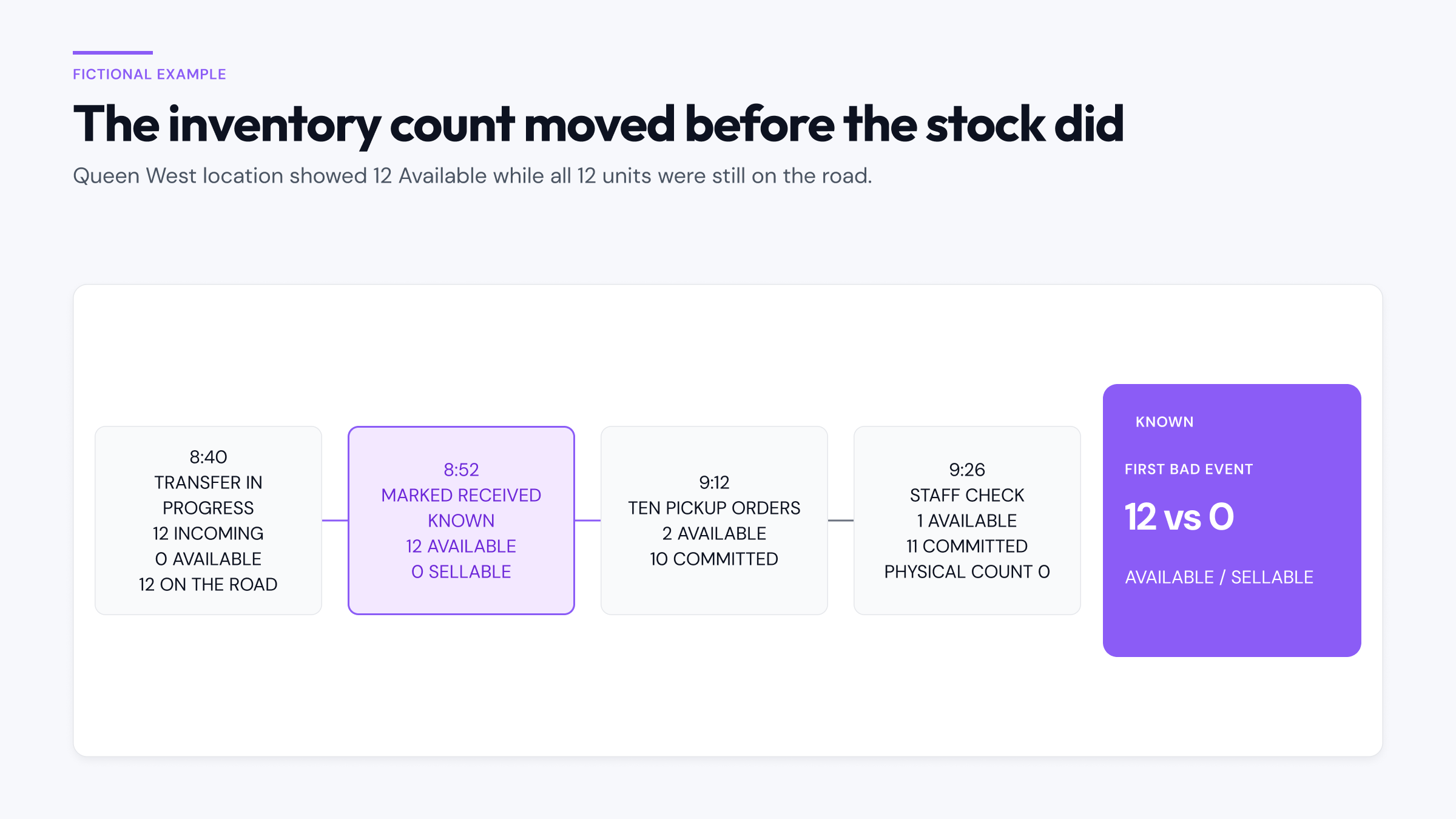
| Time | Event | Shopify state | Operational reality |
|---|---|---|---|
| 8:40 | Transfer T-1842 is in progress | Warehouse East: 48 Available. Queen West: 12 Incoming, 0 Available | The 12 transferred units are on the road |
| 8:52 | All 12 units are marked received at Queen West | Queen West: 12 Available, 0 Incoming | The vehicle has not arrived; Queen West still has 0 sellable units |
| 9:12 | Ten pickup orders have been placed | Queen West: 2 Available, 10 Committed | All 12 units are still on the road |
| 9:18 | Another customer orders one jacket for pickup | Queen West: 1 Available, 11 Committed | Staff still have no jacket to pick |
| 9:26 | Staff check the rack and back room | Queen West: 1 Available, 11 Committed | Physical count at Queen West: 0; delivery ETA is 10:05 |
The 9:18 order exposed the problem, but it did not create it. The first bad event was the 8:52 receipt. That action changed 12 units from Incoming to Available before the physical event it was meant to record.
The numbers remain internally consistent:
- Shopify believed Queen West had received 12.
- Ten earlier orders committed ten units, leaving two Available.
- The next order committed one more, leaving one Available and 11 Committed.
- The physical store still had zero because the transfer was still in transit.
At that point, the known facts are the transfer status changes, order times, Shopify quantities, and physical count. The likely explanation is a premature full receipt. What remains unknown is why it happened: a misunderstood workflow, an accidental action, or another process.
Whatever the reason, the workflow allowed a future event to be recorded as if it had already happened. That is the control gap the team needs to address.
How to investigate a multi-location inventory discrepancy
Use a narrow investigation. One variant, one affected location, one time window.
1. Freeze the customer-facing risk
If the count cannot be trusted, pause or limit the affected SKU at the affected location while you investigate. Avoid a catalog-wide shutdown when only one variant and one pickup store are in question.
2. Capture the current state before editing
Record the variant ID or SKU and the exact values for Available, Committed, Unavailable, On hand, and Incoming at every relevant location. Note which locations can fulfill online orders, offer pickup, and stock the product.
Take a physical count, but classify what you find. A unit can be physically present and still be damaged, reserved, committed, or waiting for inspection.
3. Gather the event evidence
Review:
- inventory adjustment history;
- the affected orders and their fulfillment locations;
- open and recently received transfers;
- pickup configuration and transfer requirements;
- order-routing rules and shipping profiles;
- POS transactions;
- 3PL, warehouse, and app logs;
- recent imports or bulk edits.
Shopify’s native history is a useful starting point, but a complete incident may span several screens and external systems. How to Build a Shopify Inventory Audit Trail explains how to preserve the evidence as one usable timeline.
4. Reconstruct the arithmetic
Start from the last quantity both Shopify and the physical operation support. Then walk forward event by event.
For each event, record:
- timestamp;
- variant and location;
- state before and after;
- quantity change;
- source or actor, when that evidence exists;
- the real-world event the change was supposed to represent.
Stop at the first change that the evidence cannot support. That is usually more useful than staring at the final wrong number.
5. Separate fact from inference
Write three short lists:
- Known: directly supported by Shopify, app logs, order records, transfer records, or a physical count.
- Likely: the explanation that best fits those facts.
- Unknown: attribution, timing, or physical details you still cannot prove.
This keeps the investigation blame-free and prevents a plausible story from hardening into a false one.
6. Correct the smallest wrong state
If the transfer was received too early, correct the affected location-level inventory state and document why. If the transfer record cannot be reversed, preserve it and record the compensating correction. If the product should be active at the location, activate it. If a writer is sending stale quantities, stop or correct that writer before making another manual adjustment.
Do not spread the discrepancy across locations only to make the total match. That produces a tidy total and a broken fulfillment model.
7. Verify the workflow that failed
After the correction, check the same surfaces that produced the incident:
- location-level inventory states;
- the product’s online availability;
- pickup availability and promised timing;
- order assignment;
- POS behavior;
- the next 3PL or warehouse sync.
If Shopify is not reflecting a change you know should have happened, use the workflow in Shopify Inventory Not Updating? A Practical Troubleshooting Guide rather than repeatedly overwriting the count.
How to prevent the same location drift from returning
The strongest controls are usually operational:
- Give every location a clear purpose: online fulfillment, retail sales, pickup, storage, returns, or 3PL fulfillment.
- Define which system or team may change inventory at each location.
- Receive transfers only after units arrive and are evaluated; use partial receipts when necessary.
- Test product activation, pickup timing, shipping profiles, and routing whenever a location or 3PL is added.
- Reconcile high-risk SKUs by location, not only by business-wide total.
- Sample incident timelines regularly so the team knows where evidence lives before a customer is waiting.
The aim is not to eliminate every inventory mistake. It is to keep one mistake from becoming an unexplained count across four locations.
Consider Retrace
Shopify can show the current inventory state and recent adjustment history. Multi-location incidents become difficult when the explanation is scattered across orders, transfers, manual edits, refunds, and app-driven changes.
Retrace works alongside Shopify to record inventory changes from the time it is connected. Each SKU gets a timeline of tracked events, and Retrace compares Shopify’s current quantity with its own record of those changes. When Shopify provides attribution evidence, Retrace preserves it; when it does not, the event should remain unattributed.
Retrace cannot see what is physically on a shelf, and it does not decide which location should own a unit. It gives operators a longer, more coherent Shopify-side history for finding when a count stopped adding up and choosing a correction deliberately.
Install Retrace, review pricing, or browse all Shopify inventory guides.